![logo-small-print-color.png]](https://knowledgebase.ratedpower.com/hs-fs/hubfs/logo-small-print-color.png?height=40&name=logo-small-print-color.png)
Introduction
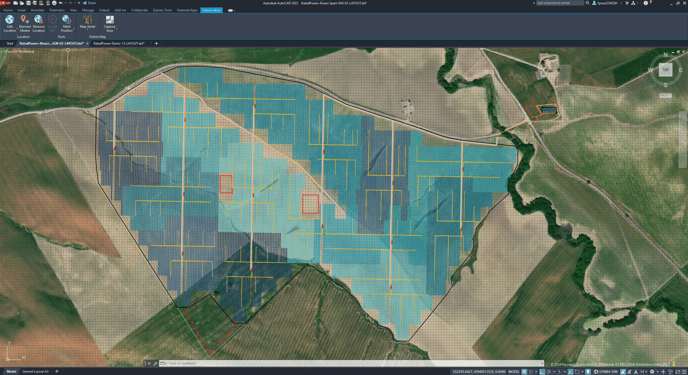
Adding a satellite view to your DXF layout in AutoCAD can provide a more comprehensive visual context for your project. This method does not require having AutoCAD Map 3D but does need a basic license of AutoCAD on Windows.
Unfortunately, AutoCAD for Mac does not support satellite views.
Follow the steps below to integrate satellite imagery into your DXF layout. A video tutorial is included to guide you through the process.
Video Tutorial
Steps
- Download a layout DXF:
- Begin by downloading your DXF layout file.
- Open the DXF in AutoCAD:
- Launch AutoCAD and open your DXF file.
- Set the Drawing Units to Meters:
- Type “UNITS” in the AutoCAD command line.
- In the Units window, set the insertion scale to "Meters" and click “OK”.
- Set the Coordinate Reference System (CRS) in AutoCAD:
- This step requires using an external tool to find the correct CRS information.
- Type “GEO” in the AutoCAD command line.
- Find the Location of the Center of the UTM Zone:
- Use the map to locate the center of the UTM zone. This is the intersection of the central meridian of the zone with the equator.
- Go to RatedPower and retrieve the EPSG code of the UTM zone from the site details during the design process (e.g., EPSG 32630 for Spain).
- Determine the Central Meridian:
- Visit EPSG.io and search for your EPSG code (e.g., EPSG 32630).
- Find the "WGS84 bounds" field to determine the longitude of the central meridian. For example, for EPSG 32630, the bounds are between 6W and 0W, so the central meridian is at 3W or -3 degrees longitude.
-Jun-27-2024-10-17-43-1357-AM.png?width=381&height=368&name=image%20(1)-Jun-27-2024-10-17-43-1357-AM.png)
- Input the Center Location in AutoCAD:
- In AutoCAD, input the location as latitude, longitude. In this case for EPSG 32630, you would input 0,-3 (latitude 0, longitude -3).
- Select Drop Marker Here in the left panel and click Next.
- Set the Project CRS:
- Again, use the EPSG code from RatedPower (e.g., EPSG 32630 for Spain).
- Search for the EPSG code in AutoCAD, select it, and click “Next”.
- Specify the Origin for the CRS:
- AutoCAD will prompt you to "select a point for the location <0,0,0>". This is the origin of the CRS.
- Type “500000” (500 thousand) for the easting.
- For the northing, type:
- “0” if your site is in the Northern Hemisphere.
- “10000000” (10 million) if your site is in the Southern Hemisphere.
- Type "0" again.
- Press “Enter”.
- Indicate North Direction:
- Click anywhere to indicate that the north is up if you are in the Northern Hemisphere.
- If you are in the Southern Hemisphere, type “90” and press “Enter”.
- Change the Map Type:
- Use the Geolocation tab in AutoCAD to change the type of map displayed.
Summary
Adding a satellite view to your DXF layout in AutoCAD can significantly enhance the visual representation of your project. By setting the correct drawing units and coordinate reference system, and using external tools to determine the UTM zone’s central meridian, you can accurately integrate satellite imagery into your layout.
For any other questions or more information regarding this topic, you can contact us at: support@ratedpower.com